Workspaces, Projects, and Branches
Charon organises collaborative game data in a three-level hierarchy. Understanding this model is the foundation for managing teams, permissions, and parallel design workflows.
Hierarchy
Workspace
└── Project
    ├── Branch  (e.g. main)
    ├── Branch  (e.g. develop)
    └── Branch  (e.g. feature-loot-rework)
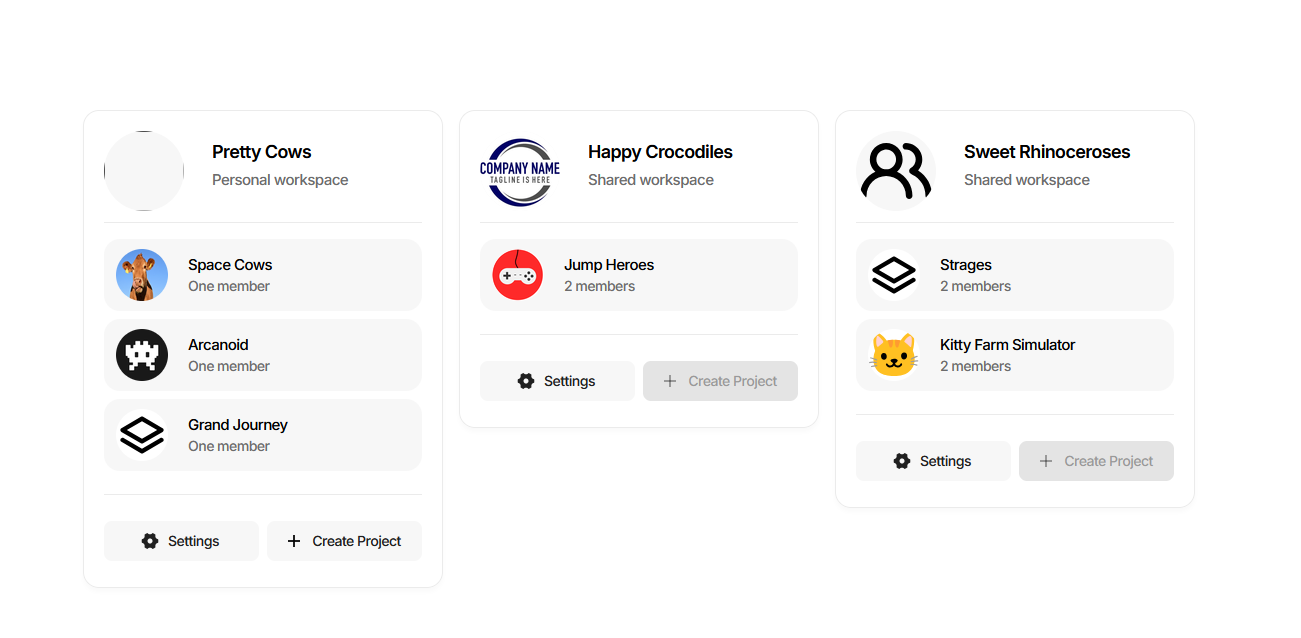
The home page shows this as cards: one per workspace - personal or shared - listing the projects it holds and how many members each has.
Workspace
A Workspace is the top-level organisational container for your studio or team.
A workspace holds one or more projects.
A workspace has one Owner and can have multiple Administrators.
Deleting a workspace permanently removes all projects and branches inside it.
Project
A Project is a named container for a single game’s data.
Every project has at least one branch (
mainby default).Projects can be shared by inviting team members; each invitation carries a specific role.
Projects can be cloned locally at any time - the resulting file is fully compatible with the standalone CLI.
Branch
A Branch is a named, independently editable snapshot of game data inside a project.
Branches are addressed in CLI calls via their URL:
https://charon.live/view/data/<project>/<branch>/Branches enable parallel development: designers work on feature branches, then merge changes back to
mainusing Charon’s patch/diff tooling.
Creating a Project
Sign in to charon.live.
Find your workspace on the home page.
Click Create Project on the workspace card and choose a name.
The project is created with a single branch, which is marked Primary.
Inviting Collaborators
Open the project.
Navigate to Project Settings → Members.
Press Invite Member… and enter the person’s email address.
They receive an email with a link to accept the invitation, and appear in the list straight away with their invitation state next to them.
Set their role in the Access to the project column - new members start as Viewers.
Available roles: Viewer, Editor, Designer, Administrator. Only an Administrator can invite members or change roles. See Roles and Permissions for the full permission matrix and for the screenshots of both steps.
Managing Branches in the Editor
Project Settings → Branches lists the branches of the project.
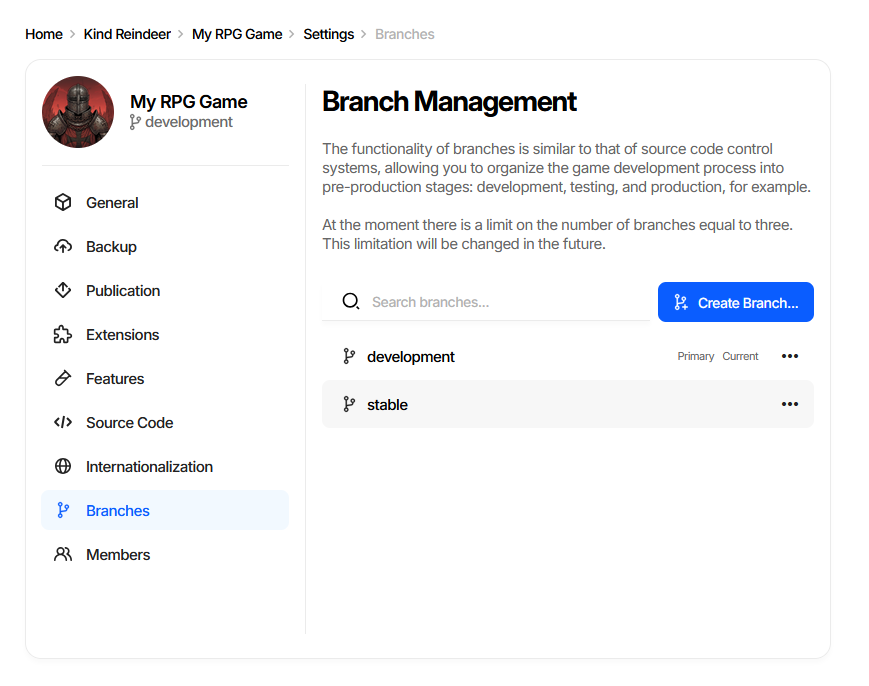
Primary marks the branch a project cannot be without - it cannot be deleted - and Current marks the one open in the editor. A project is limited to three branches at the time of writing.
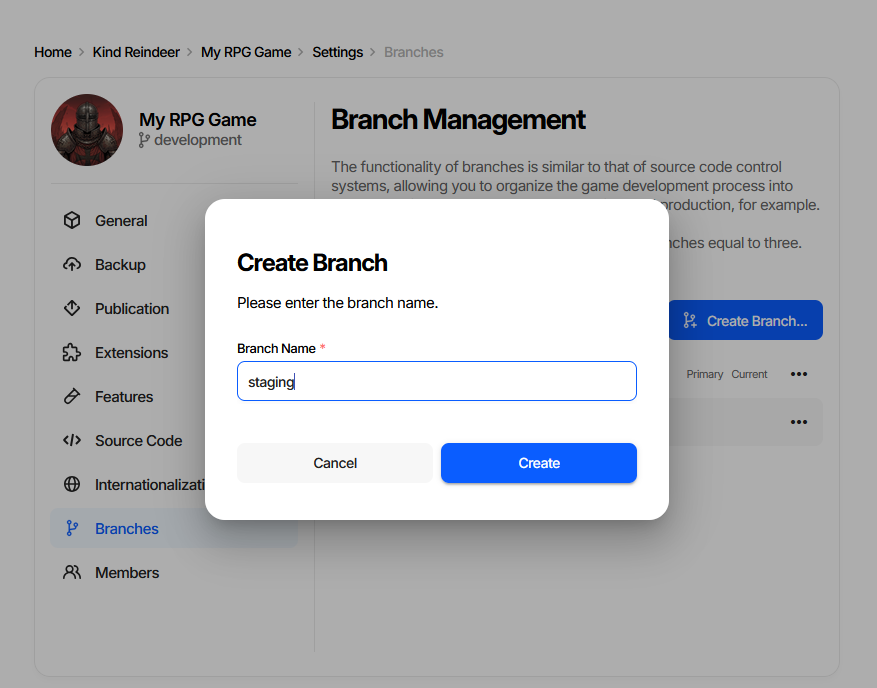
Create Branch… asks only for a name:
The ... menu at the end of a row holds the rest:
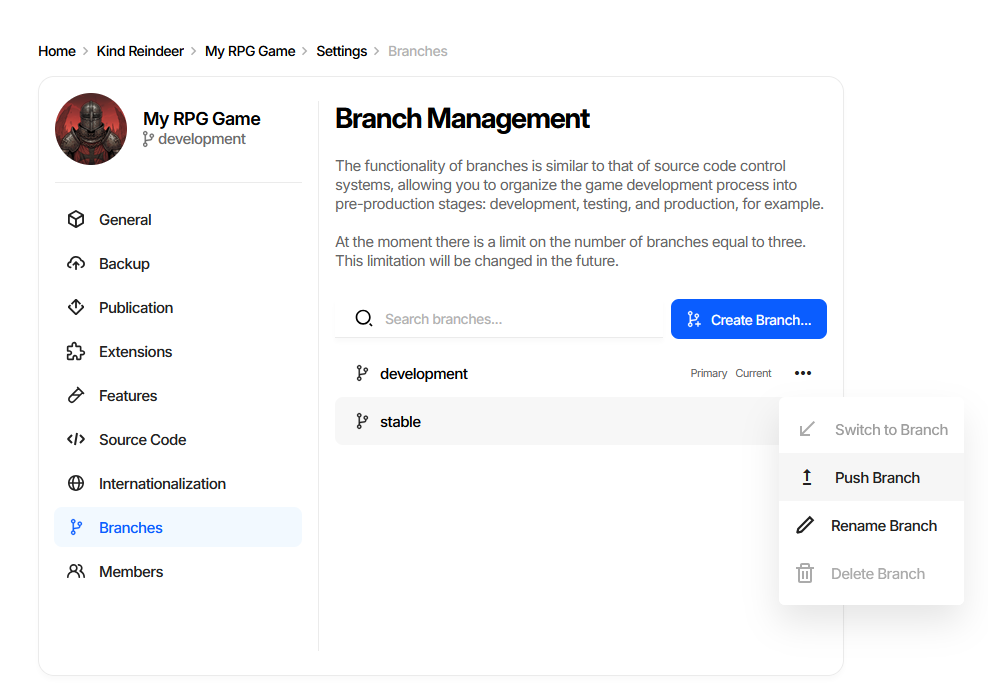
Switch to Branch opens it in the editor, and is disabled on the branch already open. Push Branch copies data into another branch, see How a push works. Rename Branch renames it, which changes the URL the CLI addresses it by. Delete Branch is disabled on the primary branch.
Working with Branches via CLI
All CLI DATA and GENERATE commands accept a branch URL as --dataBase:
# Export from the develop branch
dnx dotnet-charon -- DATA EXPORT \
    --dataBase "https://charon.live/view/data/MyGame/develop/" \
    --output items.json --outputFormat json \
    --credentials "$CHARON_API_KEY"

# Import into a feature branch
dnx dotnet-charon -- DATA IMPORT \
    --dataBase "https://charon.live/view/data/MyGame/feature-loot/" \
    --input new_items.json --inputFormat json \
    --mode createAndUpdate \
    --credentials "$CHARON_API_KEY"

# Generate code from main
dnx dotnet-charon -- GENERATE CSHARPCODE \
    --dataBase "https://charon.live/view/data/MyGame/main/" \
    --namespace MyGame.Parameters \
    --outputDirectory ./Generated \
    --credentials "$CHARON_API_KEY"
Branch-based Release Pipeline
The recommended workflow is a linear promotion pipeline. Work flows in one
direction - from dev toward stable - by pushing (copying) the entire
branch into the next stage. A push replaces the destination branch completely;
it is not a merge.
dev ──── push ────→ staging ──── push ────→ stable ──── publish ──→ game
(design)            (QA)                    (release)
How a push works
A push copies the complete content of one branch into another, replacing the destination entirely. There is no partial merge - every document in the destination is overwritten.
Three ways to trigger a push are available:
- Web UI
Go to Project Settings → Branches, open the
...menu next to the source branch, and choose Push Branch.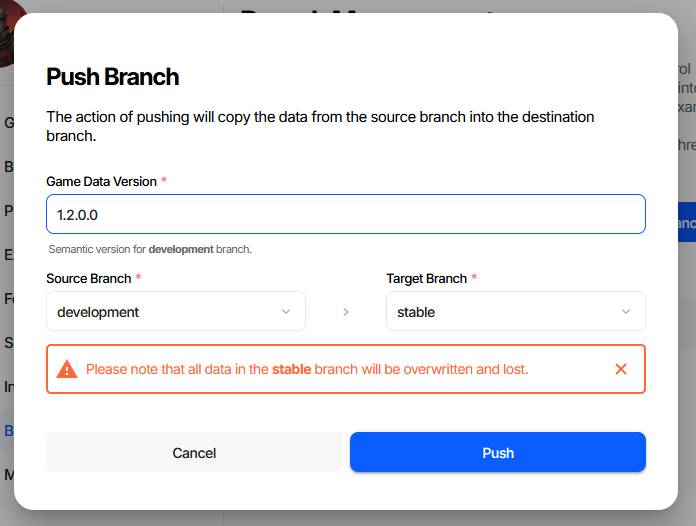
Source and target are both drop-downs, so the direction can be corrected here, and the dialog names the branch about to be overwritten in red. Game Data Version stamps a semantic version onto the source branch as part of the push - the same field as Data Version in the project settings, so a promotion and a version bump are one action.
- REST API
Send a
PUTrequest to the branch endpoint with the destination branch name in the request body:curl -X PUT \ "https://charon.live/api/project/{projectId}/branch/dev/" \ -H "Authorization: Bearer $CHARON_API_KEY" \ -H "Content-Type: application/json" \ -d '{ "destinationBranchName": "staging" }'
The operation is synchronous; a
200response means the push completed successfully.- CLI (BACKUP + RESTORE)
Use this approach when the push is part of a larger CLI script, or when you need to inspect the snapshot before promoting it:
# Step 1 – snapshot the source branch
dnx dotnet-charon -- DATA BACKUP \
    --dataBase "https://charon.live/view/data/MyGame/dev/" \
    --output dev_snapshot.json \
    --credentials "$CHARON_API_KEY"

# Step 2 – overwrite the destination branch with the snapshot
dnx dotnet-charon -- DATA RESTORE \
    --dataBase "https://charon.live/view/data/MyGame/staging/" \
    --input dev_snapshot.json \
    --credentials "$CHARON_API_KEY"
Repeat the same steps to promote from staging to stable.
Warning
All three methods replace all content in the target branch. Double-check that you are targeting the correct branch before triggering a push.
Typical branch setup
Branch |
Purpose |
Who writes to it |
|---|---|---|
|
Active design and iteration |
Designers, game designers |
|
Integration and QA testing |
CI pipeline (push from
|
|
Release-ready data; source for publish |
CI pipeline (push from
|
CI/CD pipeline example
The REST API push is the simplest option for CI pipelines - a single HTTP call with no intermediate files. The example below uses GitHub Actions, but the same pattern works with any CI system.
# .github/workflows/promote.yml
name: Promote dev → staging

on:
  workflow_dispatch:   # triggered manually or on a schedule

jobs:
  promote:
    runs-on: ubuntu-latest
    steps:
      - name: Push dev branch into staging
        run: |
          curl -X PUT \
            "https://charon.live/api/project/${{ secrets.CHARON_PROJECT_ID }}/branch/dev/" \
            -H "Authorization: Bearer ${{ secrets.CHARON_API_KEY }}" \
            -H "Content-Type: application/json" \
            -d '{ "destinationBranchName": "staging" }'
See CI/CD Integration for a full CI/CD walkthrough including validation and publish steps.
Advanced: Patch-based Feature Merging
For teams that need to integrate isolated feature branches selectively - without
promoting the entire dev branch - Charon provides a patch/diff workflow.
A patch is a JSON file that captures only the differences between two branches.
It can be reviewed, stored in version control, and applied to any compatible
target.
# Compute what changed between dev and a feature branch
dnx dotnet-charon -- DATA CREATEPATCH \
    --dataBase1 "https://charon.live/view/data/MyGame/dev/" \
    --dataBase2 "https://charon.live/view/data/MyGame/feature-loot/" \
    --output loot.patch.json --credentials "$CHARON_API_KEY"

# Apply only those changes to the target branch
dnx dotnet-charon -- DATA APPLYPATCH \
    --dataBase "https://charon.live/view/data/MyGame/dev/" \
    --input loot.patch.json --credentials "$CHARON_API_KEY"
This approach requires a custom build pipeline and additional scripting to handle conflict resolution. It is best suited for large teams with long-lived feature branches or for shipping incremental live-service updates.
See Patch and Diff Workflow for the full reference.
Cloning a Branch Locally
Any branch can be downloaded as a standalone file using DATA BACKUP:
dnx dotnet-charon -- DATA BACKUP \
    --dataBase "https://charon.live/view/data/MyGame/main/" \
    --output myGame_main.json \
    --credentials "$CHARON_API_KEY"
The resulting file can be opened with the standalone CLI:
charon myGame_main.json
The standalone tool and the server share the same file format - full round-trip compatibility is guaranteed.